YouTube Music can show lyrics for many songs, making it easier to follow along, learn words, or sing with the track. The exact steps depend on whether you are using the mobile app, desktop browser, or a casting setup, and lyrics are not available for every song.
How to View Lyrics in YouTube Music
You do not usually need to turn on a separate system-wide lyrics setting. In most cases, YouTube Music displays lyrics from the Now Playing screen when they are available for the track you are listening to.

- Open the YouTube Music app or website and start playing a song.
- Open the Now Playing screen by tapping or clicking the current track.
- Look for the Lyrics option, or swipe up on the player in the mobile app to reveal song details and lyrics.
- If lyrics are available, they will appear on screen, often with the current line highlighted as the song plays.
Using Lyrics on the Mobile App
On phones and tablets, lyrics are usually easiest to access from the expanded player. If the song supports lyrics, YouTube Music often shows them directly below the album art or in a dedicated lyrics panel.
- Tap the song at the bottom of the app to open the full player.
- Swipe up on the player if the lyrics are not visible right away.
- Scroll within the lyrics area if the song shows a long lyrics block.
- Tap the screen once if the interface hides playback controls or text after a moment.
Using Lyrics on Desktop
On a computer, open the YouTube Music website and play a track. Lyrics are usually shown from the right side of the player or from an expanded song details view, depending on the current interface.
- Start playback of a song in YouTube Music.
- Open the Now Playing view if it is not already visible.
- Look for a Lyrics section near the track information or controls.
- If the browser window is narrow, maximize it or widen it to make the lyrics panel easier to see.
If Lyrics Are Not Showing Up
If you do not see lyrics, the most common reason is that the song does not have them in YouTube Music. However, a few other issues can also prevent lyrics from appearing normally.
- The track does not have lyrics available in YouTube Music.
- You are playing a remix, live version, or upload that does not include lyrics data.
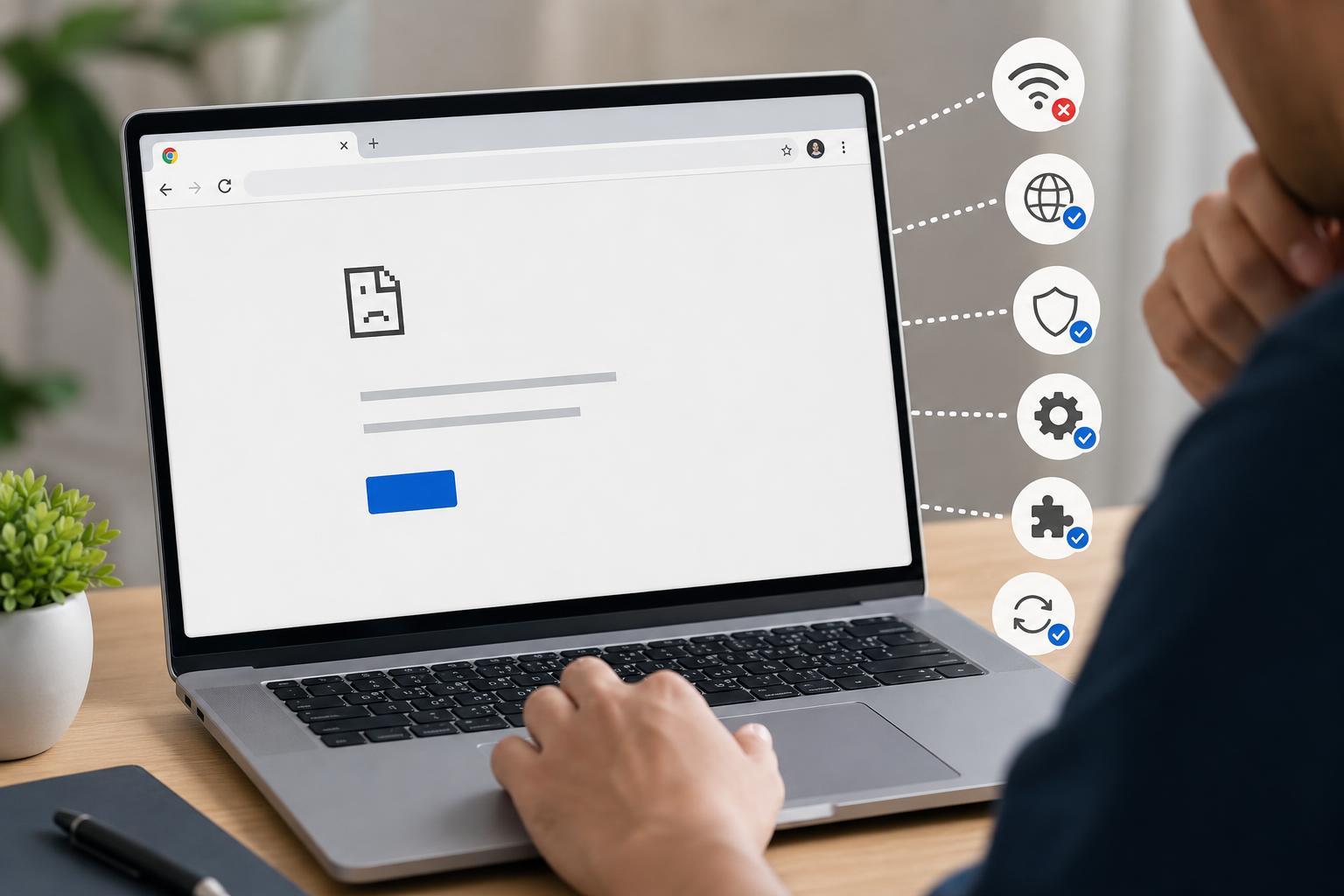
- The app or browser version is outdated.
- Your internet connection is unstable, so the lyrics panel does not load correctly.
- You are viewing a casted or external playback screen that does not support lyrics display.
- Try another song that you know has lyrics.
- Update the YouTube Music app or refresh the browser page.
- Sign out and back in if the app seems stuck on missing content.
- Disable and re-enable casting if lyrics are missing on the connected screen.
- Clear the app cache on mobile if the lyrics panel never loads for any song.
Synced Lyrics vs. Static Lyrics
Some songs show synced lyrics, which highlight line by line as the music plays. Others may show a plain text block without timing. The format depends on what YouTube Music has for that track.
When YouTube Music Lyrics Still Do Not Work
If lyrics are missing for many songs, not just one, the problem is more likely with the app, browser, or playback mode than with the tracks themselves. In that case, check whether you are using the latest version of YouTube Music and whether the issue happens on another device too.
- Test the same account on another phone, tablet, or computer.
- Try the web version if the mobile app fails, or the app if the web version fails.
- Check whether browser extensions are interfering with the page.
- Make sure Restricted Mode or similar playback filters are not affecting how content loads.
Quick Way to Check Whether a Song Supports Lyrics
The fastest test is to open a few mainstream songs in the app and check the Now Playing screen. If lyrics appear for one track but not another, the feature is working and the missing song likely does not have lyrics available in YouTube Music.
 ANDROID
 ANDROID
 ANDROID